
You upgraded to a high-speed fiber connection. You pay your monthly bill on time. Yet, when you try to stream a 4K movie or join an important Microsoft Teams meeting, the video keeps buffering, and the dreaded loading wheel appears.
Before you call your internet service provider (ISP) to complain, you should know a secret: Your internet connection might be perfectly fast, but your Wi-Fi setup is strangling it. In 2026, our homes are packed with smart devices, thick walls, and overlapping signals that actively kill Wi-Fi speeds. Here at Pariganaka.com, we are breaking down the hidden reasons your Wi-Fi is dragging its feet and how you can boost your speeds instantly for free.
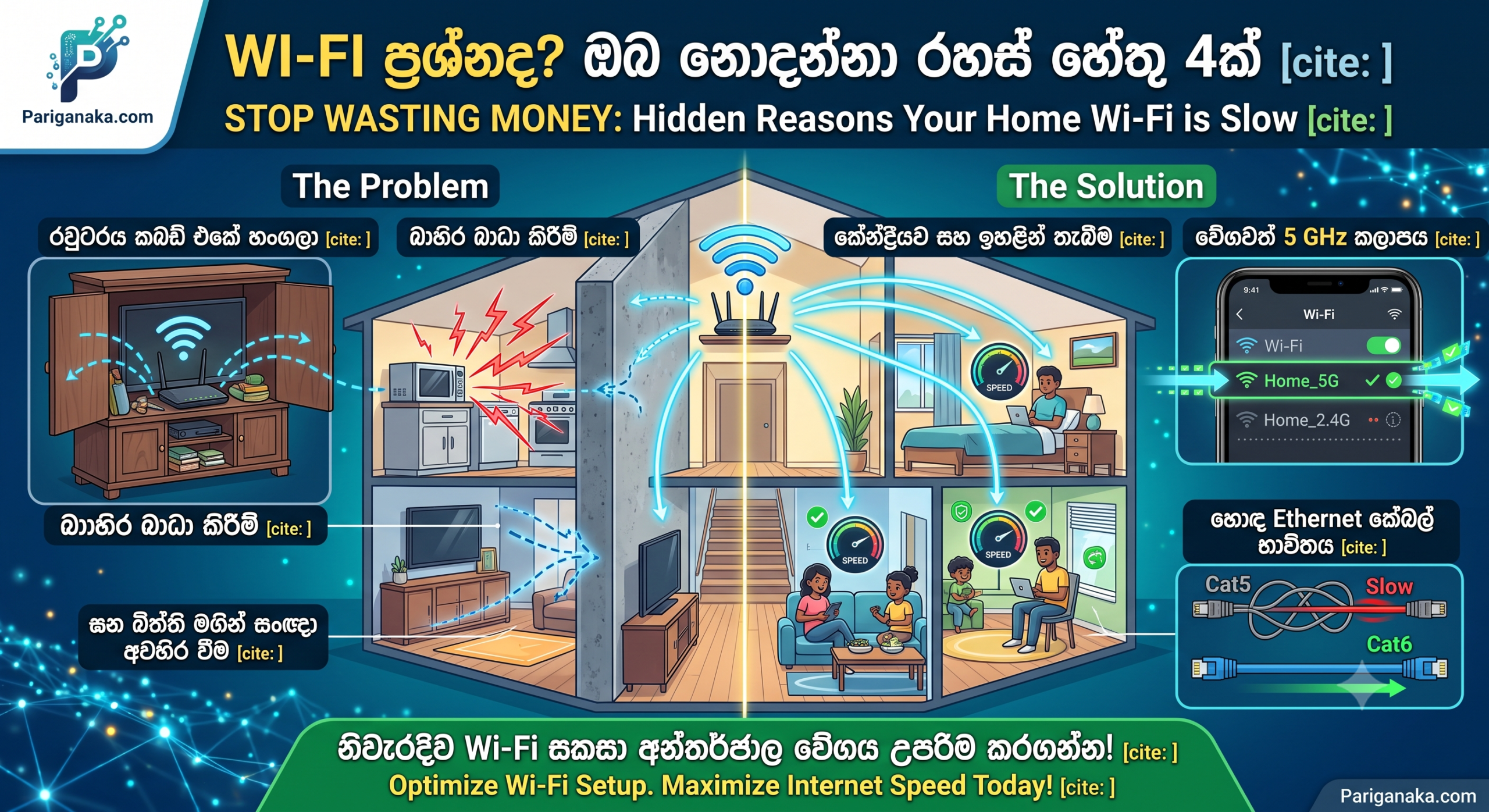
1. The 2.4 GHz vs. 5 GHz Blind Spot
Almost every modern router is “Dual-Band,” meaning it broadcasts two different Wi-Fi signals. Most people just connect to whichever one shows up first, which is a massive mistake.
- The 2.4 GHz Band: This signal travels far and passes through walls easily, but it is incredibly slow. In 2026, it is also deeply crowded because your microwave, Bluetooth devices, and your neighbor’s router all use this exact frequency.
- The 5 GHz Band: This signal is lightning-fast and handles high-bandwidth tasks easily. The downside? It struggles to pass through solid walls.
- The Fix: If you are gaming, streaming, or working close to your router, manually switch your device to the 5 GHz network (usually named with a “_5G” at the end). Keep the 2.4 GHz network strictly for smart bulbs or devices far away.
2. The “Cupboard” Mistake: Router Placement
Where is your Wi-Fi router sitting right now? If it is hidden inside a TV console, tucked behind a sofa, or sitting in the far corner of the house, you are killing your signal.
- The Problem: Wi-Fi signals travel outward and downward. Physical obstacles like concrete walls, large mirrors, glass panels, and metallic surfaces reflect or absorb the signal before it ever reaches your smartphone.
- The Fix: Move your router to a central location in your home. Elevate it by placing it on a shelf or mounting it on a wall rather than leaving it on the floor.
3. Wi-Fi Channel Congestion (The Apartment Effect)
If you live in a closely packed neighborhood or an apartment complex, your router is fighting a constant invisible war with your neighbors’ routers.
- The Problem: Routers broadcast data across specific digital lanes called “channels.” If ten routers in your apartment building are all automatically using Channel 6, the signal slows down to a crawl for everyone.
- The Fix: Download a free app like Wi-Fi Analyzer on your phone. It will show you which channels are crowded. You can then log into your router’s settings page (the address is usually printed on the back of the router) and manually switch your Wi-Fi channel to a less crowded lane (usually channels 1, 6, or 11 on the 2.4 GHz band).
4. Hardware Bottlenecks: Old Cables and Devices
Sometimes, the issue isn’t wireless at all—it is the hardware connecting your system together.
- The Ethernet Trap: If you connected your main router to a secondary Wi-Fi extender using an old yellow cable you found in a drawer from ten years ago, you might be capping your speed. Old Cat5 cables can only handle up to 100 Mbps.
- The Fix: Check the text printed on your network cables. Ensure you are using at least Cat5e or Cat6 cables, which easily support speeds up to 1,000 Mbps (1 Gbps).
Quick Troubleshooting Check
| Symptom | Likely Cause ❌ | Instant Fix ✅ |
| Full bars but slow loading | Connected to 2.4 GHz band / Channel congestion | Switch to 5 GHz band / Change router channel |
| Signal drops in bedrooms | Router blocked by walls or placed on the floor | Move router to a central, elevated location |
| High speeds on phone, slow on PC | Outdated PC network card or old cable | Update network drivers / Upgrade to Cat6 cable |
The Bottom Line:
Paying for a premium internet package is useless if your router is trapped behind a television set broadcasting on a crowded channel. By spending just ten minutes optimizing your router’s placement, choosing the right frequency band, and using the proper cables, you can instantly unlock the true speed of the internet you are already paying for.
Stop letting bad setup slow you down, and stay tuned to Pariganaka.com for more practical tech optimization guides!
Leave a Reply