
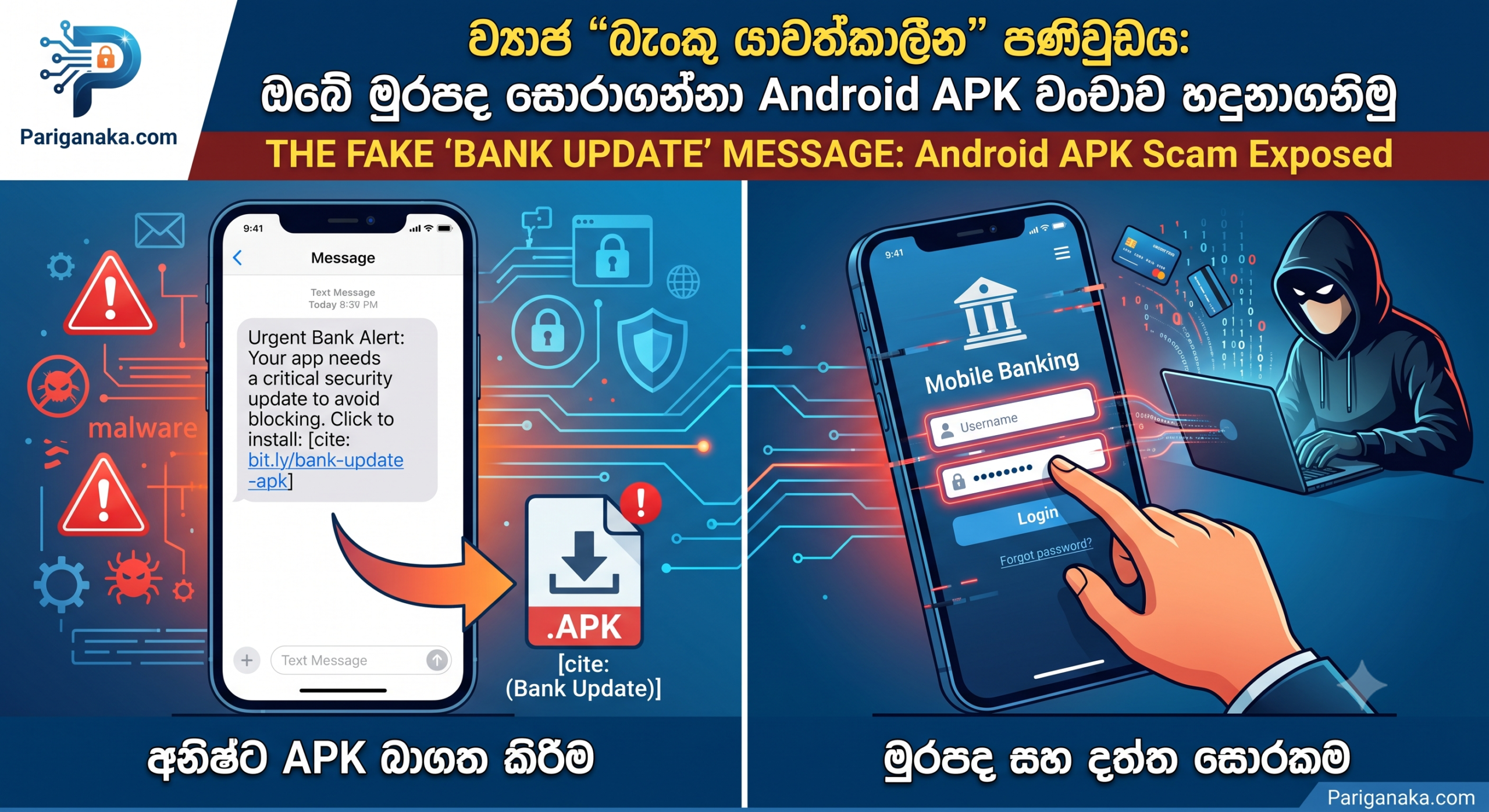
We all receive regular text messages and WhatsApp notifications from our banks regarding system maintenance, credit card offers, or security alerts. Because we are so used to these messages, we rarely second-guess them.
However, cybercriminals are now exploiting this trust using a highly sophisticated attack known as the Malicious Banking Trojan. Instead of asking for your password directly, they trick you into installing a virus that secretly watches everything you type on your screen.
Here at Pariganaka.com, we want to break down exactly how this dangerous Android APK scam works and how you can ensure your digital wallet remains completely secure.
1. The Bait: The Fake Update Link
This scam specifically targets Android users because the operating system allows you to install apps from outside the official store—a process called “sideloading.”
- The Message: You receive an urgent SMS or WhatsApp message claiming to be from your bank. It says your current mobile banking app is outdated and will be blocked within 24 hours if you do not update it.
- The Trap: The message contains a link. Instead of taking you to the Google Play Store, the link takes you to a fake webpage where a file ending in
.apk(Android Package Kit) automatically begins downloading to your phone. - The Illusion: The downloaded file will have your bank’s exact logo and name, making it look incredibly legitimate.
2. The Silent Weapon: Screen Overlays
Once you bypass your phone’s security warnings and install this fake .apk file, the real nightmare begins.
- The Invisible Shield: The malware does not delete your real banking app. Instead, it hides in the background and waits for you to open the actual app.
- The Fake Screen: The exact second you open your real banking app, the malware instantly draws a fake, invisible “overlay” screen right on top of it. It looks completely identical to your normal login page.
- The Theft: You type in your username and password, thinking you are logging into your bank. In reality, you are typing your details directly into the hacker’s fake screen. Once you hit submit, the overlay disappears, and the hacker instantly receives your credentials.
3. The Ultimate Threat: Accessibility Permissions
To bypass the final layer of security (your OTP codes), the malware uses a clever trick.
- The Request: When you first install the fake app, it will ask for “Accessibility Permissions,” claiming it needs them to optimize battery life or improve security.
- The Takeover: If you click “Allow,” you hand over complete control of your phone. Accessibility services allow the malware to read your screen, intercept incoming SMS OTP codes, and secretly dismiss the notification before you even see it. The hacker can now freely transfer funds out of your account.
4. How to Defend Your Android Device
This attack is terrifying, but it is entirely preventable if you practice good digital hygiene.
- Never Sideload Financial Apps: Only download banking, crypto, or payment apps directly from the Google Play Store. Your bank will never, under any circumstances, send you a direct link to download an
.apkfile via text message. - Keep Google Play Protect Enabled: Go to the Play Store, tap your profile icon, and ensure Play Protect is turned on. This acts as a built-in antivirus that actively scans your phone for malicious overlays and Trojans.
- Check Your Accessibility Settings: Go to your phone’s Settings > Accessibility > Downloaded Apps. If you see a random app or utility tool that has been granted accessibility control, turn it off and delete the app immediately!
Security Rule of Thumb: If an app requires you to go into your settings and toggle the “Install from Unknown Sources” switch, it is not an official banking update. Stop the installation immediately.
Quick Guide: Official App vs. Fake APK
| Feature | Official Banking App ✅ | Malicious APK Scam ❌ |
| Download Source | Google Play Store | A web link sent via SMS or WhatsApp |
| File Format | Installed seamlessly by the OS | Downloads directly as an .apk file |
| Permissions Asked | Camera (for checks), Biometrics | Demands “Accessibility” or screen reading |
The Bottom Line:
Your smartphone is the vault that holds your digital life, and you control who gets the key. By strictly sticking to official app stores and being deeply suspicious of urgent “update” messages, you can completely neutralize this threat.
Keep your digital vault secure, and stay tuned to Pariganaka.com for more modern cybersecurity guides!
Leave a Reply